A volumetric wave analyst. It draws the waves, measures each one — how far, how long, how much volume — and compares it with the previous wave in the same direction. No signals. The interpretation is yours.
What it is
Most wave tools tell you what a wave "means" — accumulation, exhaustion, a phase. Wave Engine does not. It draws the wave structure and measures each completed wave: distance (how far price travelled), duration (how many bars it took) and volume (how much traded). It then compares that wave with the previous wave in the same direction and shows the comparison as plain ratios.
Those are the raw materials a tape reader works from. What they add up to — strength, weakness, a turning point — is a judgement, and the Suite leaves that judgement to you and to the Suite's context engine. Wave Engine's job is to make sure the numbers you judge from are clean.
Setup
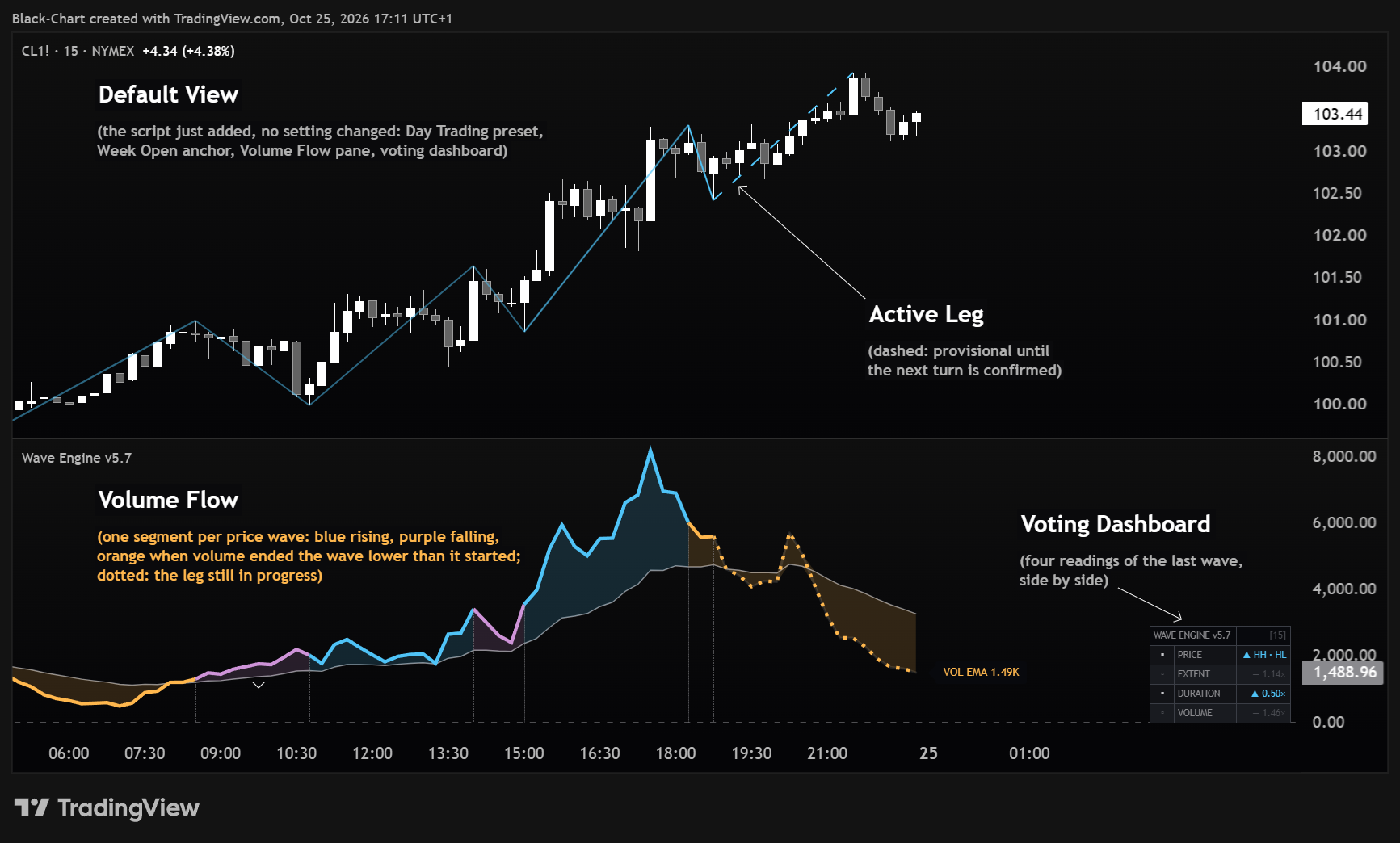
Add it — the anchor is already set. Every wave and every volume total is measured inside an anchored range. By default (Reference Period: Week Open) measurement starts at the open of the current week, in the instrument's exchange timezone rather than yours, and restarts on its own every week — there is nothing to set. To read the day, the month, or a point of your own choosing, the dropdown's other three entries do exactly that: Today, Month Open, Manual (drag).
Pick your Wave Preset. In Wave Detection, the Wave Preset menu sets wave sensitivity — Scalping · Day Trading · Intraday · Swing · Position (default: Day Trading) — and it works on any instrument with no retuning, because it adapts to volatility on its own. Prefer not to think about it? Choose Auto: it picks the level from the chart timeframe.
Choose what you want to see. In the pane, Pane View switches between Volume Flow (default), Wave Volume and Wave Boxes. Wave lines on the chart, per-wave labels and the dashboard each toggle independently in Display and Dashboard.
| Wave Preset | Auto picks it on | Waves |
|---|---|---|
| Scalping | Charts up to 5m | Finest |
| Day Trading | Up to 15m | Fine |
| Intraday | Above 15m, up to 1h | Medium |
| Swing | Up to 1D | Wide |
| Position | Above 1D | Widest |
Why does a preset work everywhere? It sizes the swing by the instrument's volatility, not by a fixed percentage: so the same choice yields consistent waves on FX, indices, gold or crypto, with no per-market retuning. The table shows the level Auto picks on each timeframe; any level can also be chosen by hand on any chart.
Early in a period you may see little — that's normal. Waves and volumes are measured from the anchor, and with the default Week Open the anchor restarts at the open of the week: on Monday morning the range still holds very few bars. On high timeframes (H4, Daily) Wave Engine may show few waves or none. Three ways to see more right away: (1) drop to a lower timeframe (e.g. from Daily/H4 to H1/M15) — the same period holds many more bars, so waves appear instantly; (2) pick a wider window with Month Open; (3) or set the dropdown to Manual (drag) and drag the anchor further back. ⚠ Dragging counts ONLY in Manual (drag): the handle stays visible and draggable under the other entries too — TradingView draws it, not the indicator — but the value is ignored and the anchor does not move.
On the chart
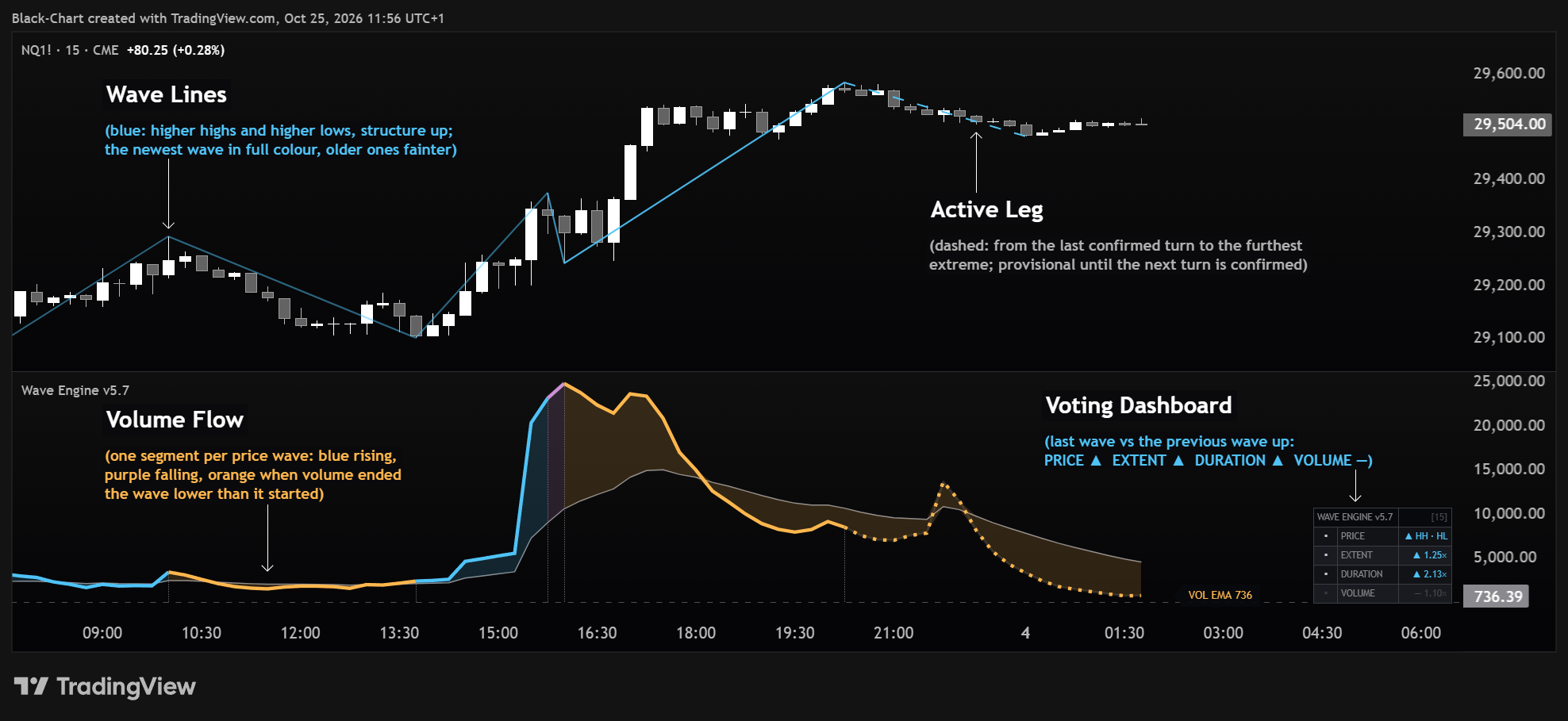
A ZigZag of completed waves, coloured by structure: cyan while highs and lows are rising, violet while they are falling, grey until the first structure of the range is recognised — a mixed wave keeps the colour of the last structure. Optional labels give each wave's volume, bar count and distance. The active leg — still forming — is dashed, so you never confuse it with confirmed history.
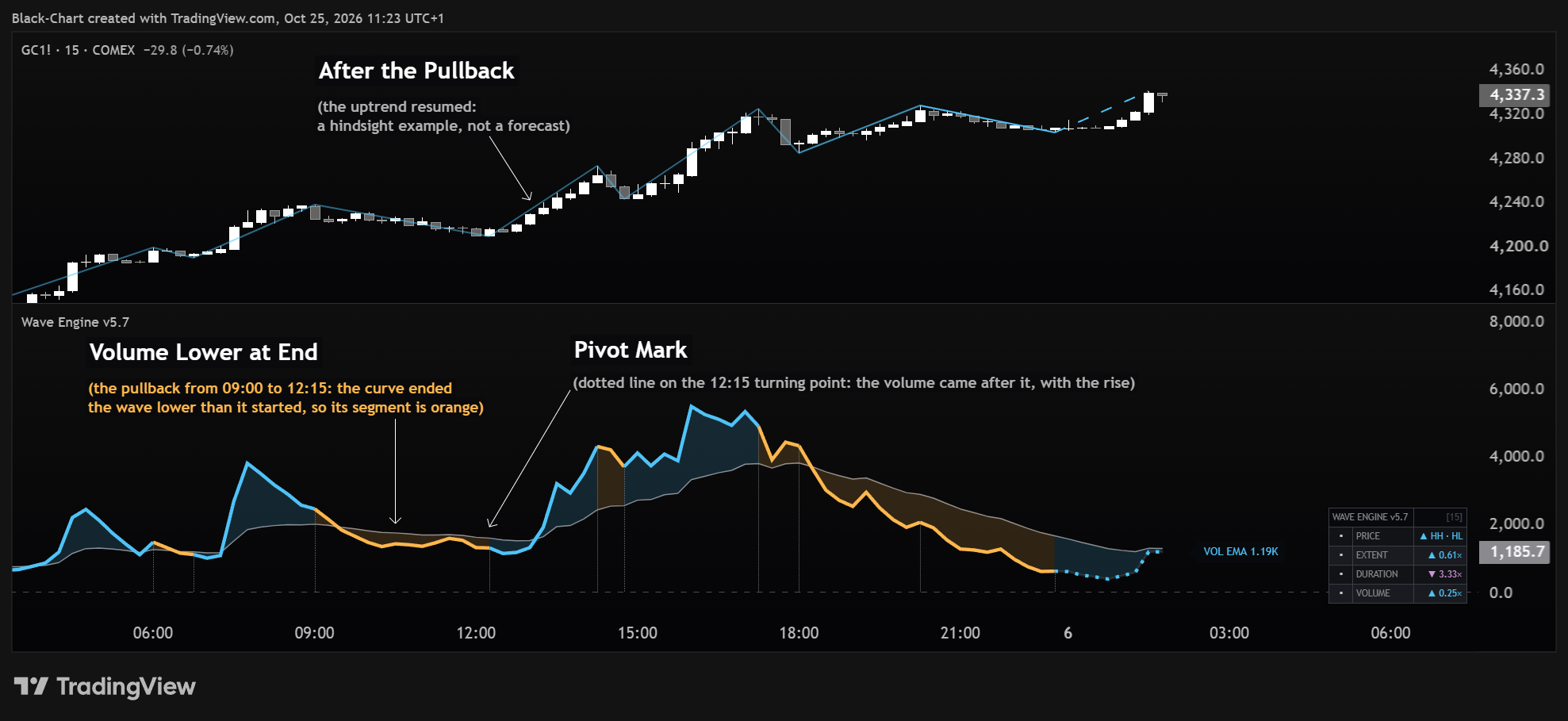
A smoothed curve of traded volume that restarts at the anchor, with a thin average line and a filled band between the two. The curve is cut into one segment per price wave, and each segment is coloured by how volume ended compared with how it started: cyan — a rising wave that ends with higher volume; violet — a falling wave that ends with higher volume; amber — volume lower at the end of the wave, in either direction; grey — the same, or no data. The active leg is dotted. A dashed zero line is labelled 0 · VOLUME and a tag on the right shows the current value (VOL EMA). With the dashboard in its default bottom-right position the tag sits under it: move the dashboard (Dashboard → Position) to read it. A thin dotted vertical mark sits on the bar of every price pivot, where one wave ends and the next begins (Pivot Marks, on by default). The peak of the curve can fall before or after the mark: the bar with the most volume is not always the bar of the price high or low — and that gap is part of the reading (see below).
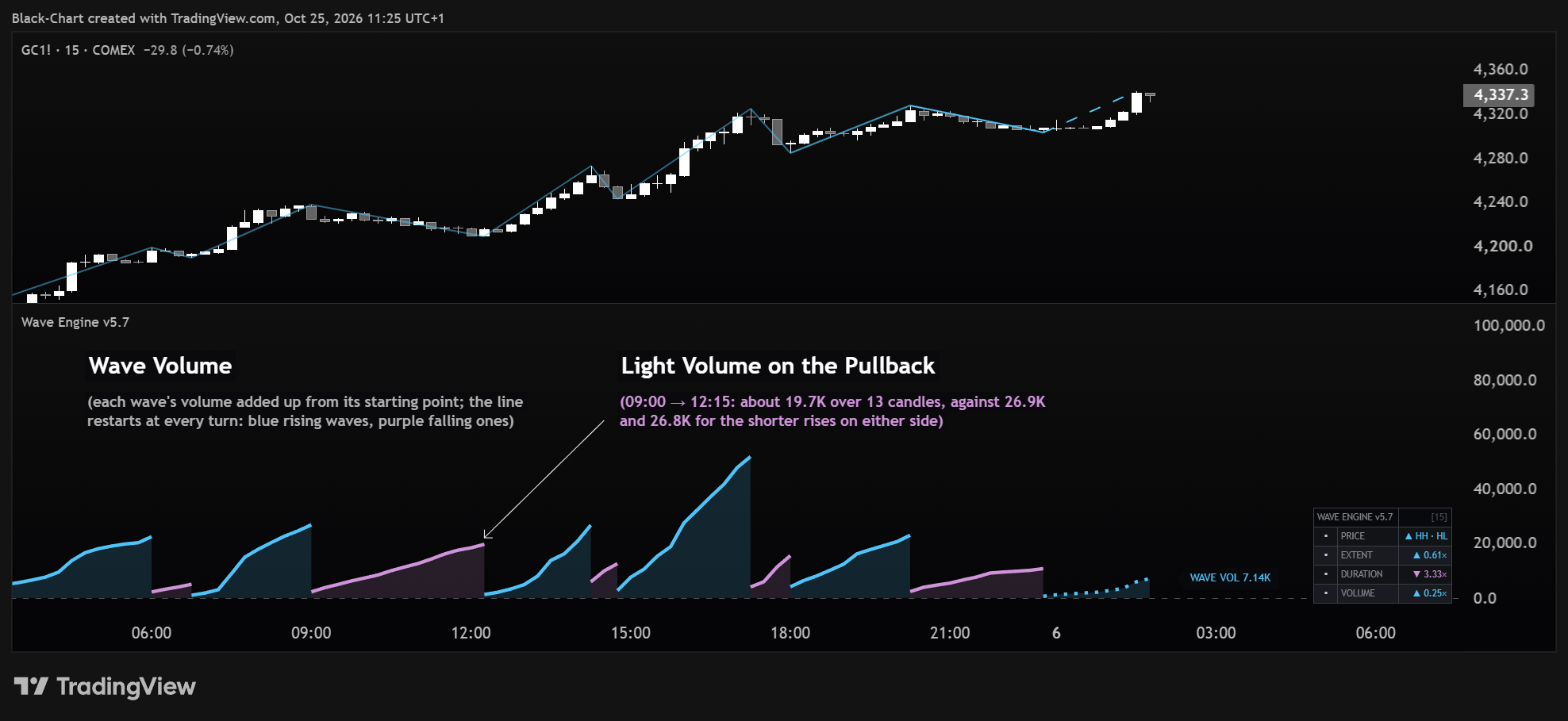
Set Pane View to Wave Volume and the line shows the volume of each price wave, added up bar by bar from the pivot where the wave starts. It restarts at every pivot, so it turns exactly where the price wave turns; at the end of a wave its height is the wave's total volume — the same figure the Wave Boxes view draws as a box. Cyan for up waves, violet for down waves; the active leg is dotted and a tag on the right shows its volume so far (WAVE VOL), in the same place as the Volume Flow tag. A longer wave adds up more volume simply because it lasts longer: read it next to DURATION.
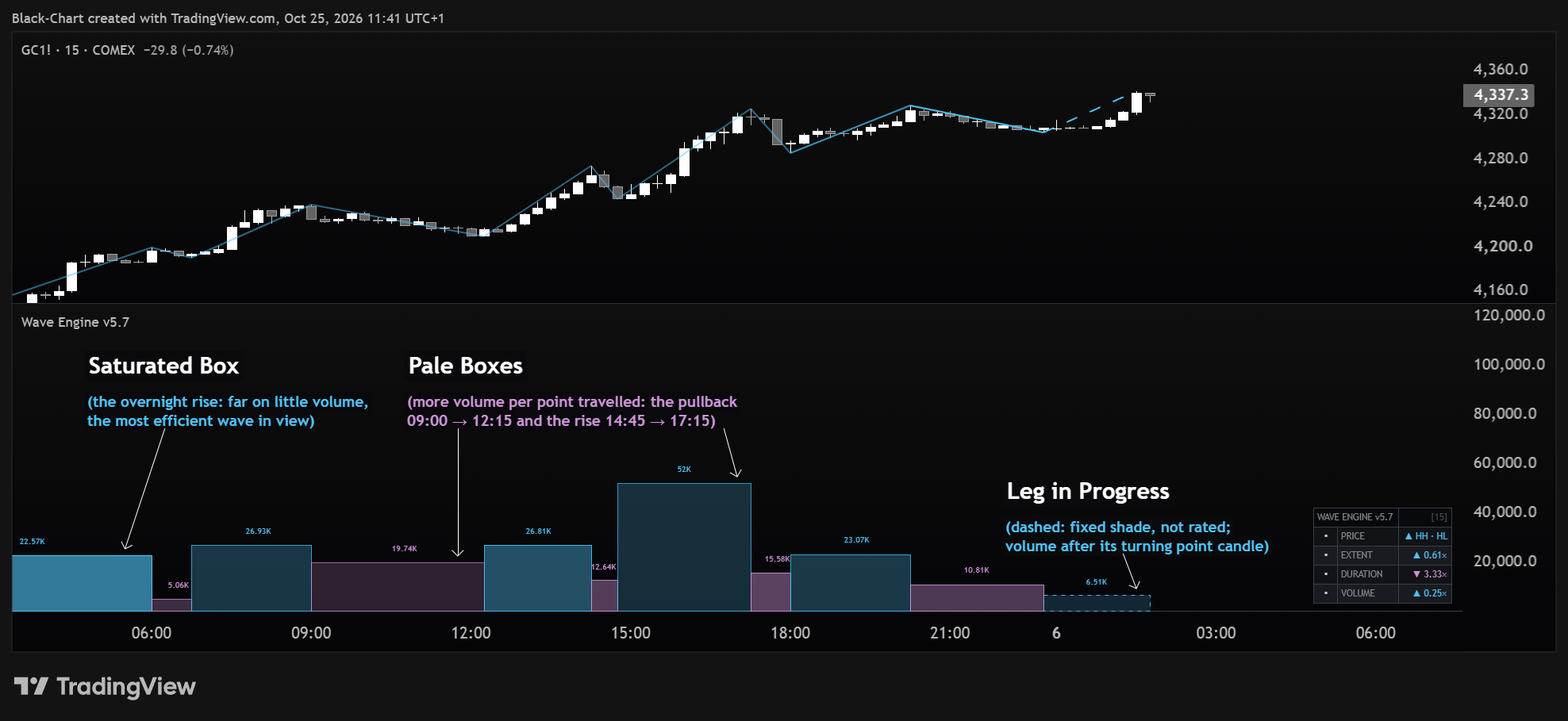
Set Pane View to Wave Boxes and each wave becomes a box whose height is its volume — the classic Weis read: taller box, more volume behind the move. The colour intensity is efficiency (Effort vs Result): saturated = a thrust that covered ground cheaply, pale = churning, much volume for little progress. Intensity is relative to the waves currently drawn. Optional volume labels sit on each box.
A silver dashed vertical line marks the anchor in use — the point where the whole analysis begins: waves, anchored volume and dashboard. It shows you exactly where Wave Engine is measuring from. It follows the entry chosen in Reference Period and moves on its own when a new period starts; under Manual (drag) it is the handle you drag. It is always drawn, in every mode.

The Volume Flow curve is volume; the pivot is price. Price turns on the bar of its high or low, while the curve peaks where the most volume traded — and those are often different bars. This is not a lag and not an error: the distance between the peak of the curve and the pivot mark is a reading of effort against result, and it is drawn on the chart for you. The thin dotted Pivot Marks show exactly where each price wave ends, so the gap is visible at a glance. The dot in each sketch is the peak of the curve.
These describe what happened; they are not signals. Read them with the panel — PRICE, EXTENT, DURATION, VOLUME — and with the structure around the pivot. Wave Volume, by contrast, turns exactly on the pivot by construction: use it when you want each wave's total, not the shape of volume inside the wave.
The dashboard
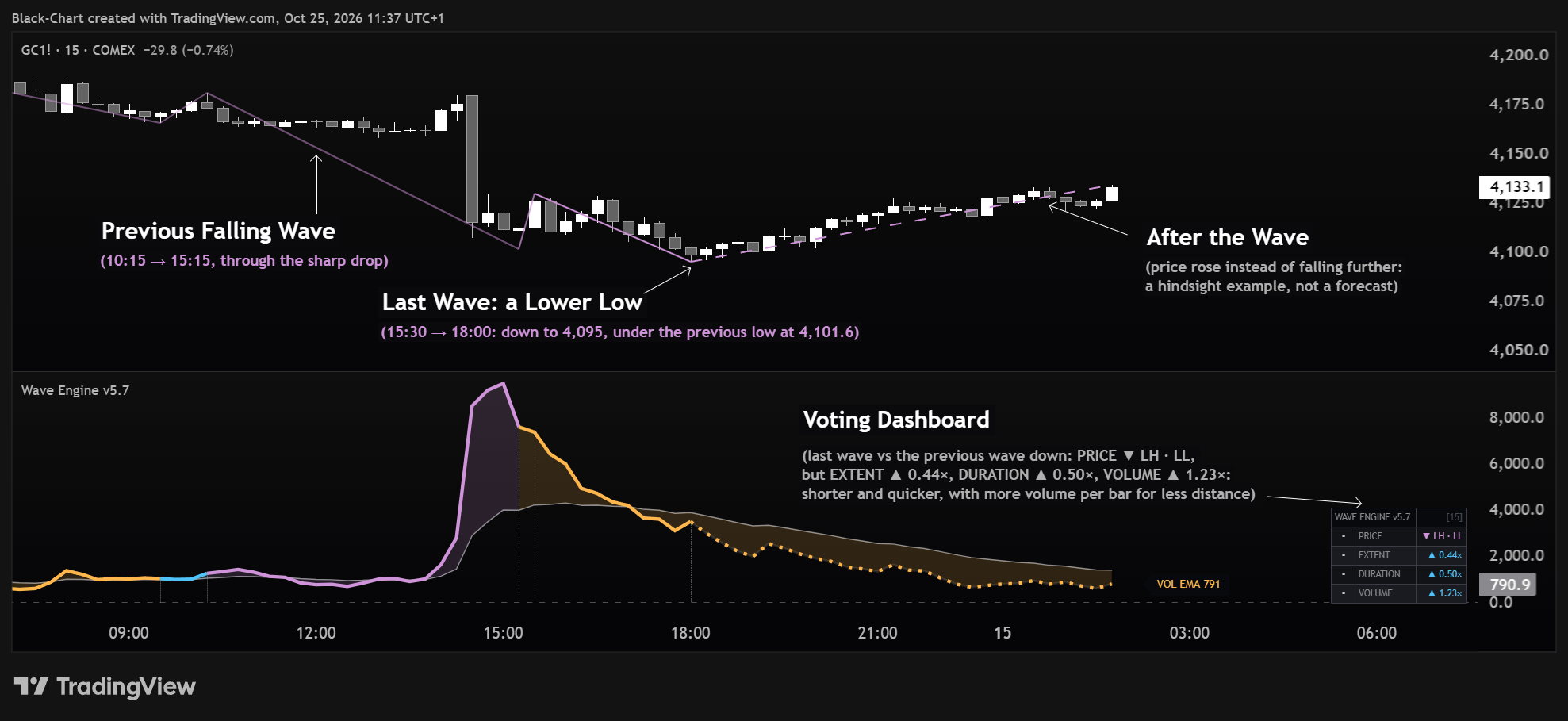
Four rows. Each one compares the last confirmed wave with the previous wave in the same direction — the last up wave with the up wave before it, the last down wave with the down wave before it. The rows change only when a new wave is confirmed.
| Row | What it tells you |
|---|---|
| PRICE | The structure of the ZigZag. ▲ HH · HL when the last wave starts and ends above the wave two positions earlier, ▼ LH · LL when both are below, — NO STRUCTURE until one appears. It stays until the opposite structure forms. |
| EXTENT | Distance. The price distance of the wave divided by the distance of the previous wave in the same direction. 1.35× = the wave travelled 35% further. |
| DURATION | Time. The number of bars of the wave divided by the bars of the previous wave in the same direction. |
| VOLUME | Volume. The wave's volume intensity compared with the previous wave in the same direction. |
How to read the arrows. The number is the ratio. The arrow shows which side the reading leans to — ▲ the upside, ▼ the downside — not "more" or "less". When the two waves are about equal the row shows —. EXTENT and DURATION: a clearly larger wave points with the wave, a clearly smaller one against it — so a down wave shorter than the previous down wave shows ▲. VOLUME: clearly less volume points against the wave; clearly more volume takes the arrow of EXTENT — more volume with more ground goes with the wave, more volume with less ground goes against it.
The four rows are never added into a score: they are four separate comparisons, shown side by side. They describe the last confirmed wave — not a forecast. Until there is a previous wave to compare with, a row shows —.
The classic panel is still there. Turn Voting Dashboard off (group Pane View & Wave Reading) to get it back: THRUST ANALYSIS with DURATION and EXTENT, LAST WAVES with the last up and down wave as volume | ticks | bars, ACTIVE LEG with the leg in progress, and PRESET with the active level. ⚠ In the classic panel DURATION and EXTENT carry the same names but a different calculation: the last two up waves against the last two down waves.
Settings
This edition exposes only the essential controls: the structural engine is pre-configured at validated values and not exposed. In practice you pick preset, anchor and visuals; the rest runs on its own.
Changed too many settings, or is the indicator behaving oddly? No problem: open the indicator's Settings (Inputs) and click Reset settings — the button at the bottom-left of the dialog — to return everything to the correct defaults.
| Group | What it does | Advice |
|---|---|---|
| Wave Detection | Wave Preset (Auto / Scalping / Day Trading / Intraday / Swing / Position) — how waves are built. Auto picks the level from the chart timeframe on its own. | Pick the preset |
| Anchored Range | Reference Period — the dropdown that chooses where the engine starts counting: Today, Week Open (default), Month Open, Manual (drag) — plus the Start Date/Time, read only by the manual entry. Everything measures from here; a silver dashed vertical line marks the point. | Week Open |
| Display | Wave lines, Weis boxes, box efficiency colouring, box labels, active leg, per-wave telemetry (off by default), ZigZag colouring and width. | Your preference |
| Dashboard | Show/hide, position, size. | Your preference |
| HTF Duration & Extent | Classic panel only (Voting Dashboard off): computes its DURATION/EXTENT on a higher timeframe. Default OFF. | Default (OFF) |
| Pane View & Wave Reading | Pane View (Volume Flow / Wave Volume / Wave Boxes); the Volume Flow options — colour by ZigZag, colours, transparency and pivot marks; and Voting Dashboard, which switches between the four-row panel (on) and the classic panel (off). | Defaults |
The dropdown decides where the engine starts counting. Everything else follows from it: change it and the waves, the volumes and the readings change too, because you are asking the market a different question.
| Entry | Measures from | When to use it |
|---|---|---|
| Today | The open of today's regular session — not the pre-market. | Intraday reading, one day at a time. |
| Week Open | The open of the current week, in the exchange timezone. Default. | Day-to-day context: it restarts on its own every week. |
| Month Open | The open of the current month. | A wide window, for moves that build over weeks. |
| Manual (drag) | The point you choose, which stays put until you move it. | Studying a historical schematic or a specific range. |
Start Date/Time is a secondary control. It counts only under Manual (drag): under the other three entries the calendar computes the anchor and the input's value is never read. The handle stays visible and draggable on the chart outside Manual too — TradingView draws it, not the indicator — but dragging it has no effect: to move the anchor by hand, set the dropdown to Manual (drag) first.
Each entry defines a window of fixed duration: on the wrong timeframe that window holds too few bars — or far too many. Below are the bar counts at full period on a continuous-session instrument; early in a period there are fewer. Highlighted are the combinations that give a sensible reading.
| Timeframe | Today | Week Open | Month Open |
|---|---|---|---|
| 5m | 288 bars | ~2,000 bars | ~8,900 — huge window |
| 15m | 96 bars | 672 bars | ~2,970 bars |
| 1h | 24 bars | 168 bars | ~740 bars |
| 4h | 6 bars — too few | 42 bars | ~185 bars |
| 1D | 1 bar — unusable | 7 bars | ~31 bars |
Putting it together
How to look, and in what order. This describes how to read the panel — not what to trade.
Choose where to measure from with the Reference Period dropdown. A wrong anchor produces clean-looking numbers that describe the wrong thing.
PRICE says whether the ZigZag is making higher highs and higher lows, lower highs and lower lows, or neither yet.
EXTENT, DURATION and VOLUME: did the last wave travel further, take longer and trade with more intensity than the previous wave in the same direction? Read the three side by side — they are not a score.
In Volume Flow the colour of each segment shows whether volume ended higher or lower than it started, and the pivot mark shows whether the peak of volume came before, on or after the turn. Then form your own read — or hand the context to the Suite's context engine.
Access a professional toolset built on Wyckoff logic, volume, and liquidity. No automation. No simplification. Only structure.